Some days ago, Microsoft released the first public preview of Microsoft Data Explorer for Excel (http://www.microsoft.com/en-us/download/details.aspx?id=36803) as strategy to enforce their Self-Service Business Intelligence strategy beyond PowerPivot and Power View.
This new and very interesting tool which installs an Excel Add-In for Excel 2010 SP1 and Excel 2013, is described by the Microsoft website as a tool that “...simplify access to public and corporate data. Easily discover, combine, and refine data for better analysis in Excel.“
To unveil what this new tool brings us, this is the first part of a series of post to discover some of the capabilities of Data Explorer. Let’s begin!
After you install Data Explorer, you will see a new ribbon in Excel:

For this first post, we will play with the Online Search feature, that allows us to search and discover data in public sources. For this preview, the search is limited to Wikipedia but it is expected to expand the number of public sources in the next releases:

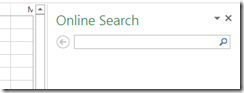
The Online Seach pane opens:
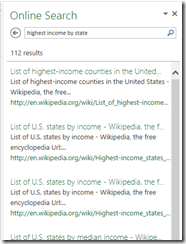
Try a new search related to the highest income States which relative quickly shows 112 results distributed in pages:
If you mouse-over the search results, an automatic new Excel sheet named “preview” appears and shows a preview of the data exposed by each search result:
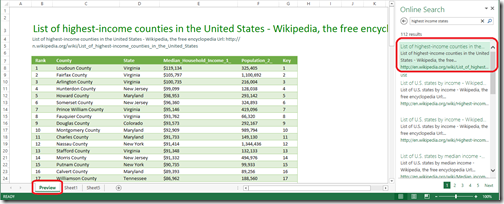
You can move your mouse to the next result and the same will happen for the new data source. Additional information is shown in the preview such as the description and the original URL for the data source:
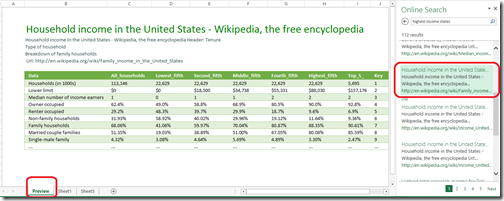
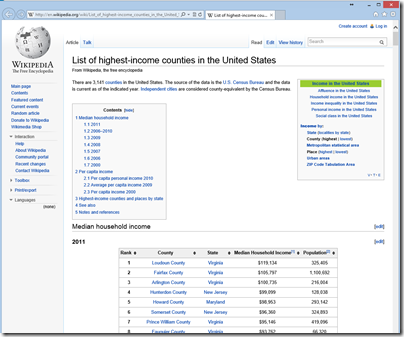
If you clic over one of the data sources, you will navigate to the original webpage. In this case Wikipedia:
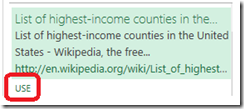
When you finally find your data source you need to clic on “USE” to get the data to your Excel spreadsheet:
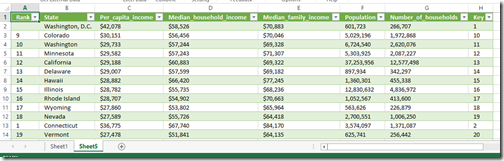
Data will be downloaded to a new sheet:
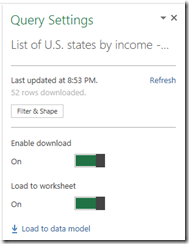
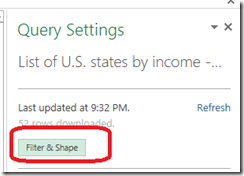
The Query Settings pane appears with some new options and update information for the recent query:
You can personalize the default query by clicking Filter & Shape:
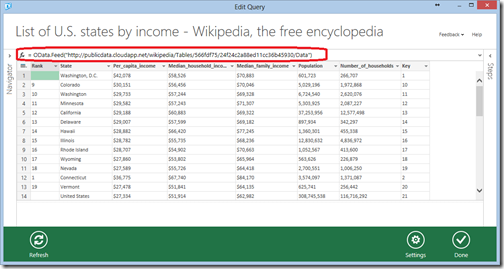
The “Edit Query” window opens showing the OData query for this data source:
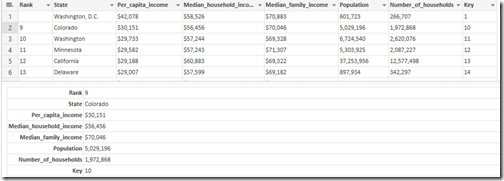
If you clic over the row number you will get a preview of the whole row in form view:
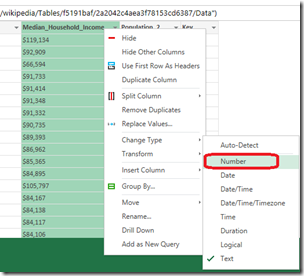
Part of the “power” of Data Explorer is shown when you right clic selecting any column. You can change the data type, hide some rows, aggregate rows using a group by among other options. We will explore more of these options in future posts:
Other very interesting feature is that everything that you do with your query is “recorded” and shown in the Steps pane inside the Query Editor:
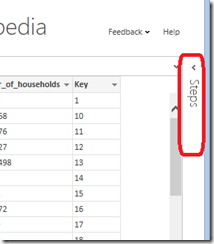
The first step is the selection of the “Source”:
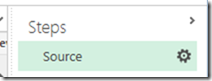
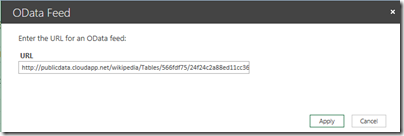
If you clic over the Source step, the OData Feed query is shown:
I will perform some additional actions over my query:
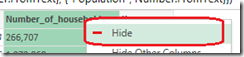
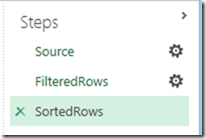
Accordingly, the Steps are updated with each query “transformation”:
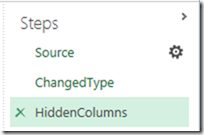
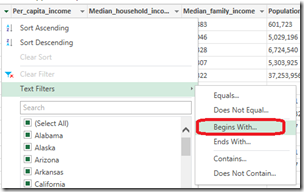
Now I removed the last two steps and filter the States begining with “A”:
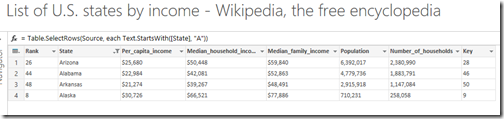
The OData query and data are updated:

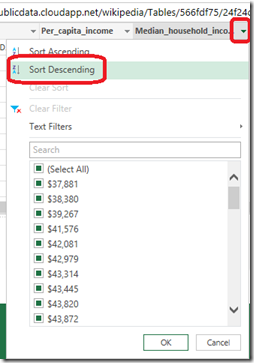
Now sort the Median Household Income descending:
Query and Steps are updated:

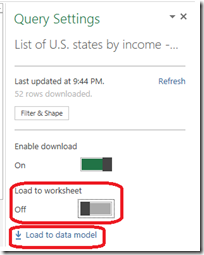
Going back to the Query Pane in Excel, you can notice some options about the data load in the third section: “Enable download” allow to enable or disable the use of the query. “Load to worksheet” indicates Data Explorer if in addition to create the data source query, Excel should download the data to a new Excel sheet. The last option “Load to data model” indicates Data Explorer to download the data to the workbook Power Pivot data model.
In this case we will turn-off the “Load to Worksheet” and load the data directly to our PowerPivot model:
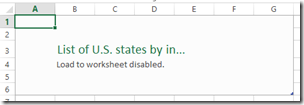
Data is removed from the sheet:
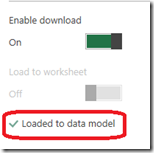
After it indicates data has been loaded to data model, we open the Manage model from the PowerPivot ribbon:

Having the data in PowerPivot allows you to create very complex and powerful data models:
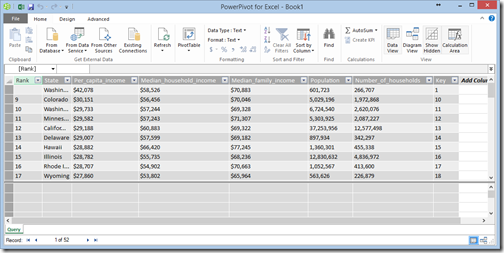
Just to show you how easy is to play with our new dataset, you can create new Pivot Tables or better, if you have Excel 2013, create a new Power View report:

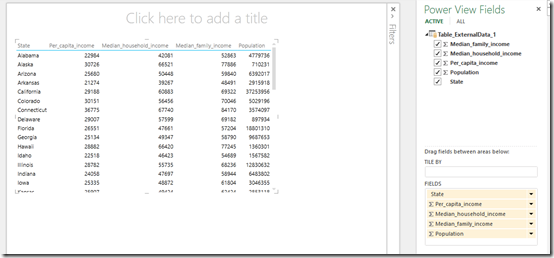
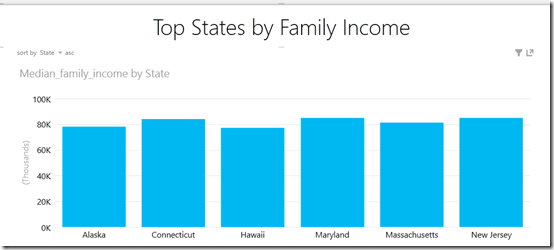
Wrapping up…
As you saw, the new Microsoft Data Explorer Preview for Excel makes honor to its name and description, putting in the hands of the end-user (Information Worker in the Microsoft lingo), a very simple to use and powerful way to discover and obtain new data from local and external sources to enrich our analysis, even from non relational sources such as Wikipedia pages, fast and easy as never before. In the next post we will play with more of one source of data and the merge capabilities.
Alan


